

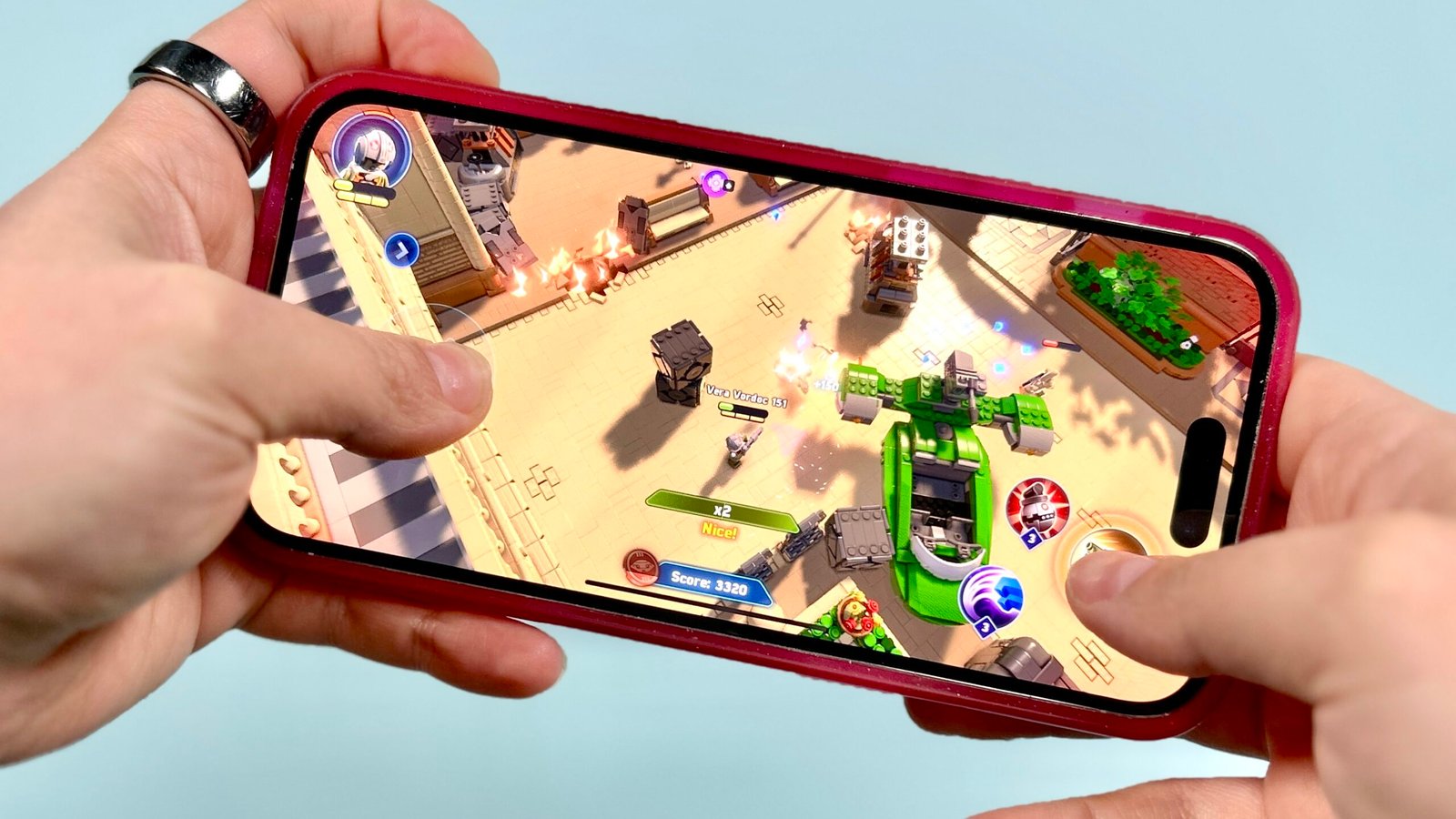
Mobile arcade games are designed to be fun, fast, and easy to play. However, if you’re using an older or budget smartphone, you may often face problems like lag, freezing, or sudden crashes. This can quickly turn an enjoyable gaming session into a frustrating experience.
Games like Cat Chaos Crash – cat runner game rely on smooth animations and quick reactions. When your phone struggles to keep up, even simple gameplay can feel difficult.
The good news is that you don’t always need a new phone to enjoy your favourite arcade games. With the right settings and habits, you can significantly improve performance—even on low-end devices.
In this guide, we’ll show you practical ways to play Cat Chaos Crash smoothly without crashes or major lag.
Why Low-End Phones Struggle With Mobile Games
Before fixing the problem, it helps to understand why low-end phones face performance issues.
Limited Hardware Power
Budget devices usually come with:
-
Weaker processors
-
Less RAM
-
Slower storage
-
Basic graphics chips
These components struggle when games become faster or more demanding.
Background App Overload
Many phones run multiple apps in the background. This uses up memory and processing power that your game needs.
Poor Storage Management
When internal storage is almost full, apps may load slowly and crash more often.
Outdated Software
Old system versions may not be optimised for newer games, leading to instability.
Knowing these causes makes it easier to apply the right solutions.
Check Your Phone’s Basic Requirements
Before changing anything, make sure your phone meets the minimum requirements.
What You Should Have
For smoother gameplay, your phone should ideally have:
-
At least 2GB–3GB RAM
-
Android 8.0 or higher
-
Some free internal storage (1GB+ recommended)
If your phone is below this, you can still try the tips below, but performance may vary.
Close Background Apps Before Playing
One of the easiest ways to boost performance is closing unnecessary apps.
Why This Helps
Background apps consume RAM and CPU power. When you free them, your game gets more resources.
How to Do It
-
Open Recent Apps
-
Swipe away unused apps
-
Avoid running social media or browsers while gaming
Make this a habit before every gaming session.
Enable Game Mode or Performance Mode
Many Android phones include built-in gaming features.
What Game Mode Does
-
Blocks notifications
-
Prioritises system resources
-
Reduces background activity
-
Improves frame stability
Where to Find It
Look in:
-
Settings → Special Features
-
Settings → Gaming
-
Settings → Performance
If available, always enable it before playing.
Reduce System Animations
System animations look nice but consume processing power.
Why Disable Animations
On low-end phones, animations can slow down app switching and gameplay.
How to Turn Them Off
-
Go to Settings → About Phone
-
Tap “Build Number” 7 times to enable Developer Options
-
Open Developer Options
-
Set:
-
Window animation scale → 0.5x or Off
-
Transition animation scale → 0.5x or Off
-
Animator duration scale → 0.5x or Off
-
This simple change can noticeably improve performance.
Clear Cache and Free Storage Space
Low storage is one of the biggest reasons for crashes.
Why Storage Matters
When your phone is full, apps can’t store temporary data properly, leading to errors.
How to Clean Up
-
Delete unused apps
-
Remove old photos/videos
-
Clear app cache (Settings → Storage → Apps)
-
Move files to cloud or SD card (if supported)
Try to keep at least 15–20% storage free.
Update the Game and System Software
Using outdated versions can cause compatibility problems.
Benefits of Updates
-
Bug fixes
-
Performance improvements
-
Better stability
-
Security patches
What to Update
-
Google Play Services
-
Cat Chaos Crash app
-
Android system updates
Check for updates regularly in the Play Store and Settings.
Lower In-Game Settings (If Available)
Some games allow you to adjust graphics or effects.
What to Reduce
If settings are available, lower:
-
Visual effects
-
Background details
-
Shadows
-
Animations
Lower settings mean less work for your phone’s processor and GPU.
Avoid Overheating During Gameplay
Heat is a major cause of lag and crashes.
Why Heat Is a Problem
When phones get hot, they automatically reduce performance to protect hardware. This is called thermal throttling.
How to Prevent Overheating
-
Remove phone covers while gaming
-
Avoid playing while charging
-
Play in a cool environment
-
Take breaks during long sessions
Keeping your phone cool helps maintain stable performance.
Use Lite Versions of Other Apps
Heavy apps in the background affect gaming.
Examples
Instead of:
-
Facebook → Facebook Lite
-
Messenger → Messenger Lite
-
YouTube → YouTube Lite
These lighter apps use less memory and help free up resources.
Restart Your Phone Regularly
Many users ignore this simple step.
Why Restarting Helps
-
Clears temporary files
-
Resets memory
-
Stops stuck background processes
Restart your phone at least once every few days for better performance.
Disable Unnecessary Features
Some phone features run constantly in the background.
Features to Limit
-
Bluetooth (when not needed)
-
Location services
-
Auto-sync
-
Background downloads
Turning these off while gaming can improve stability.
Use Trusted Performance Booster Apps (Carefully)
Some cleaner or booster apps can help, but be cautious.
What to Look For
-
Good ratings
-
No excessive ads
-
No unnecessary permissions
Avoid apps that promise “extreme boosting” — they often do more harm than good.
Consider Using Lightweight Launchers
Heavy launchers slow down low-end phones.
Better Alternatives
Try lightweight launchers that use less memory. They make your phone feel faster overall, including during gaming.
When to Consider Upgrading Your Phone
Sometimes, optimisation isn’t enough.
Signs You May Need an Upgrade
-
Game crashes frequently
-
Phone overheats quickly
-
Very slow loading times
-
Lag even after optimising
If you experience these constantly, upgrading to a budget gaming-friendly phone may be worth considering.
Final Thoughts
Playing Cat Chaos Crash on a low-end phone doesn’t have to be frustrating. With the right settings, good storage management, and simple performance tweaks, you can enjoy smooth gameplay without constant crashes.
Most problems come from overloaded memory, outdated software, or overheating — all of which can be fixed with small changes. By closing background apps, freeing storage, enabling performance features, and keeping your phone cool, you give your device the best chance to run games properly.
You don’t always need expensive hardware to have fun. Smart optimisation can turn even a basic smartphone into a reliable gaming device.