

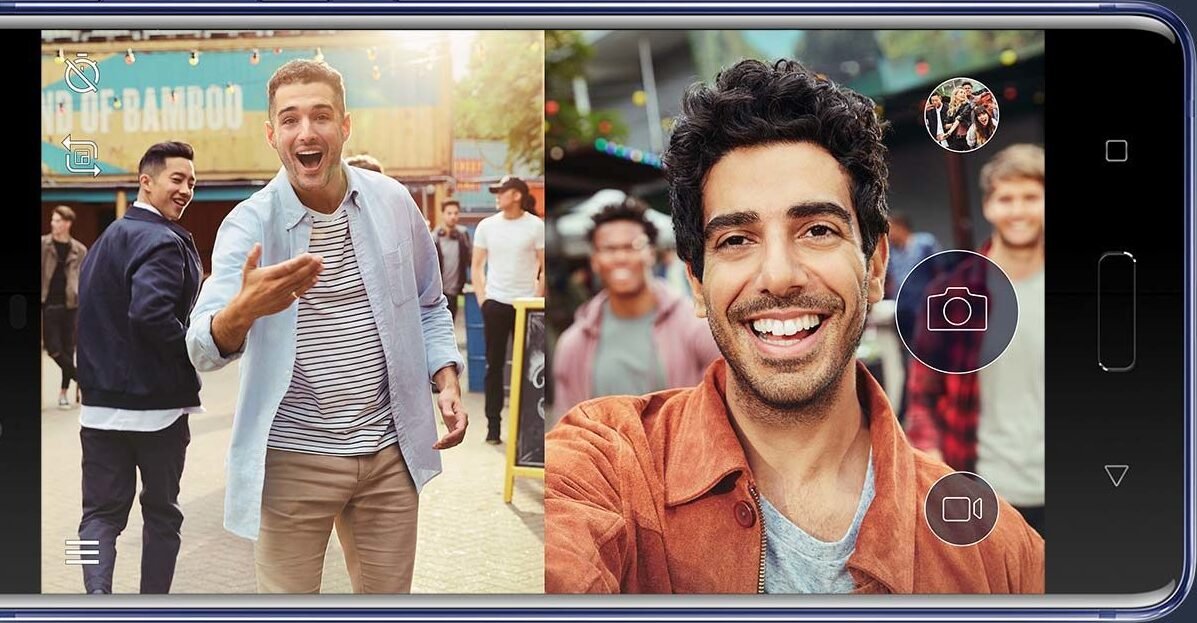
Creating content today isn’t just about hitting “record” anymore. If you’re posting on TikTok, YouTube, Instagram, or Shorts, you already know the struggle — each platform prefers a different video format.
TikTok wants vertical.
YouTube often works better with horizontal.
So what do most creators do?
They record the same video twice.
It’s frustrating, time-consuming, and honestly… unnecessary.
In this guide, we’ll show you a smarter way to record once and get both formats at the same time — without extra effort.
Why Recording Twice Is a Problem
Let’s be real for a second.
Recording the same content twice:
- Takes double the time
- Breaks your natural flow
- Leads to inconsistency between videos
- Feels exhausting, especially if you’re posting daily
Even worse, sometimes your “second take” doesn’t come out as good as the first one.
That’s why many creators either:
- Skip one platform entirely, or
- Upload poorly cropped videos
Both hurt your growth.
The Smarter Approach: Record Both Formats at Once
Instead of choosing between vertical and horizontal…
👉 You can record both at the same time.
This means:
- One recording session
- Two ready-to-use videos
- No cropping or editing headaches
It’s a simple shift, but it saves a huge amount of time — especially if you’re serious about content creation.
How CreatorCam Makes This Easy
This is where tools like CreatorCam – dual recorder come in.
Instead of forcing you to pick one format, CreatorCam lets you:
- Record vertical (9:16) and horizontal (16:9) video simultaneously
- Save both versions separately
- Keep everything perfectly synced
So while you’re filming once, you’re actually creating content for multiple platforms.
Step-by-Step: How to Record for TikTok & YouTube Together
1. Set Up Your Shot
Position your phone so your subject is centered.
This is important because:
- The vertical frame focuses on the subject
- The horizontal frame captures a wider view
A balanced setup ensures both versions look good.
2. Start Recording in Dual Mode
Open the app and start recording.
Behind the scenes, it captures:
- A vertical version for TikTok, Reels, Shorts
- A horizontal version for YouTube or longer content
You don’t have to think about switching formats — it’s handled automatically.
3. Keep Your Framing Clean
Try to:
- Stay in the center of the frame
- Avoid moving too far left or right
- Keep your background simple
This helps both versions stay usable without extra edits.
4. Stop Recording Once — Get Two Videos
When you finish recording:
- You’ll get two separate video files
- Both are ready to upload
No cropping. No resizing. No second take.
Benefits of Recording This Way
✅ Save Time
You cut your recording time in half instantly.
✅ Stay Consistent
Your content looks the same across platforms — same energy, same delivery.
✅ Improve Content Quality
No rushed second recordings. Your best take becomes your only take.
✅ Post Everywhere Easily
You can now:
- Upload vertical to TikTok, Instagram, Shorts
- Upload horizontal to YouTube
Without changing anything.
Who Should Use This Method?
This approach is perfect for:
- Content creators posting on multiple platforms
- YouTubers expanding into Shorts or TikTok
- Influencers managing daily uploads
- Small business owners creating product videos
- Coaches, educators, and personal brands
If you’ve ever felt like content creation takes too much time — this will help.
Common Mistakes to Avoid
❌ Ignoring Framing
If your subject is off-center, one version may look awkward.
❌ Overcomplicating Setup
You don’t need fancy gear. Keep it simple.
❌ Recording Separately Out of Habit
Many creators keep doing this just because they’re used to it.
Once you switch, you won’t go back.
Final Thoughts
Content creation doesn’t have to be repetitive.
Recording twice for different platforms is one of the biggest time-wasters creators still deal with today.
But with the right approach, you can:
- Record once
- Create for multiple platforms
- Stay consistent
- Save hours every week
If you’re serious about growing across TikTok and YouTube, it’s worth switching to a workflow that actually supports that.
And tools like CreatorCam make that transition simple.
Leave a Reply