

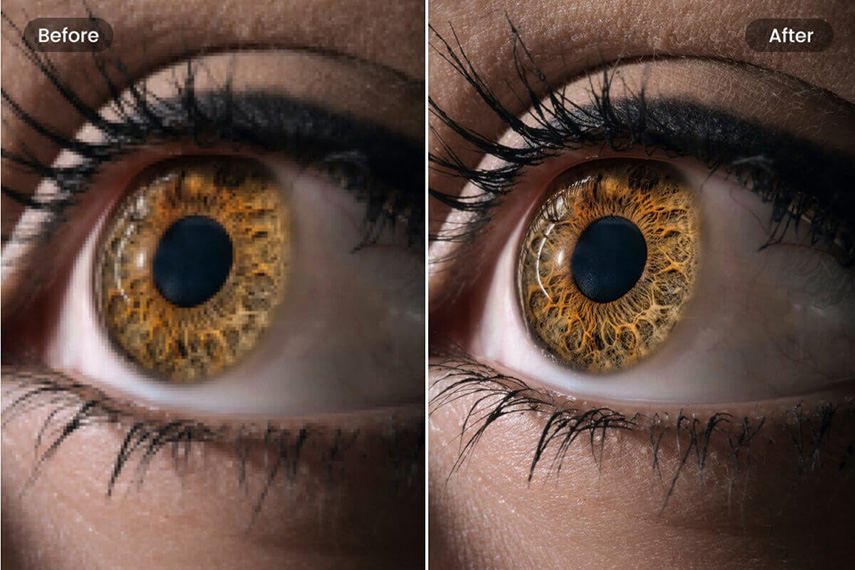
Video quality matters when an old recording, compressed clip, or low resolution file needs to look good on a modern screen. Video Upscaler 16K takes a focused approach by combining AI enhancement, resolution conversion, restoration options, and local processing in an iPhone workflow.
This review looks at the app’s features, processing options, practical uses, and overall experience. Higher resolution alone does not guarantee better results, so the source and settings still matter.
What Video Upscaler 16K Is Designed to Do
Video Upscaler 16K is built for users who want to process existing footage instead of starting a project from scratch. The app can enlarge video, improve visible detail, and restore footage through several processing technologies. That makes it useful for older recordings, compressed clips, social media videos, and content that needs to look better on newer displays.
An AI video upscaler works differently from a basic resize tool. Instead of only adding pixels, AI models analyze visual patterns and estimate information that may help a frame look more detailed. Results still depend on the original footage, but this approach can help improve video quality without requiring a traditional desktop editing workflow.
A Look at the Main Processing Options
Video Upscaler 16K supports Apple SuperRes, MetalFX, BSRGAN, and RealESRGAN. These options give users different approaches to processing rather than forcing every clip through one method.
Apple SuperRes and MetalFX can be useful when speed matters, while BSRGAN and RealESRGAN suit more advanced restoration work. The best choice depends on the source and desired result.
Resolution Is Only One Part of Quality
A larger output is not automatically a better output. If a source clip contains very little detail, exporting it at an extremely high resolution can increase file size without creating an equally large improvement.
An HD video enhancer can make sense for footage that needs a modest upgrade. For stronger source material, a 4K video enhancer can help prepare a video for larger screens. Comparing the original and processed versions is more useful than relying only on the resolution number.
How Natural Does the Enhancement Look?
AI processing should make a video clearer while keeping its visual character intact. Overprocessing can cause problems such as excessive sharpness, strange textures, or unnatural edges. These issues are especially noticeable around faces, hair, text, and moving objects.
A good review should consider more than output resolution. Compare several parts of the clip with the original. A useful enhancement should improve weak areas without making details appear artificially sharp.
Different processing technologies let users test what works best for each recording. An old family video may need a different approach from a recent smartphone clip.
Performance and the Mobile Workflow
Video processing can require significant device resources because every frame has to be analyzed and exported. A dedicated mobile app offers convenience by letting users work directly on a compatible Apple device.
For people who want to upscale video on iPhone, this can make the process easier. The workflow is focused on video enhancement rather than general editing, so users can concentrate on selecting footage, choosing a processing method, and exporting the result.
Processing time can vary depending on the source, output resolution, model, and device. Higher quality processing can naturally take longer, especially with larger files.
Privacy Through Local Processing
Privacy is an important consideration when handling personal footage. Family recordings, client videos, and unpublished creative projects may not be suitable for uploading to an outside service.
Video Upscaler 16K supports on-device video upscaling, allowing compatible Apple devices to handle processing locally. This can reduce the need to send large video files to a remote server.
For users who specifically want private video enhancement, local processing can be a useful feature. It also avoids making a cloud upload a required part of the workflow, which can be convenient when working with sensitive or personal material.
Where the App Can Be Most Useful
The app has several practical uses. An old recording may look poor on a modern television, while a creator may have compressed footage that needs improvement before reuse.
Video restoration can also help with archived footage that cannot be recreated. Users should keep the original file as an untouched reference.
The app can also help people enhance video quality when moving footage into a newer project. The right result depends on the source, so moderate settings may be better than aggressive processing.
Things to Consider Before Using It
AI enhancement is not magic. If a video is severely damaged, extremely blurry, or missing important information, no app can perfectly recover details that were never recorded. A higher output resolution may make the file larger without making it dramatically better.
Storage is another consideration. Higher resolution exports can consume considerably more space, especially when processing longer clips. It is worth checking available storage before starting a large conversion.
Users should also compare different processing methods rather than assuming one option will work for every video. Keeping the original and reviewing the finished file before deleting anything is a sensible habit.
Overall Experience With Video Upscaler 16K
The main strength of Video Upscaler 16K is its focused approach. Instead of trying to be a complete video editor, it concentrates on upscaling, enhancement, restoration, and conversion. Its selection of processing technologies gives users more flexibility than a simple resize feature.
The local workflow is useful for people who prefer keeping personal videos on their device. Mobile access and multiple processing options can make video improvement more approachable.
It is best viewed as a specialized enhancement tool rather than a replacement for a full professional editing suite.
For occasional users, the learning curve is manageable because the main task is selecting a video and choosing an appropriate processing option. More experienced users can carefully compare models and outputs.
Final Verdict
Video Upscaler 16K is worth considering for iPhone users who want a dedicated way to improve existing footage. Its AI processing options, resolution choices, restoration capabilities, and local workflow make it useful for several types of video.
It can help users improve video quality when the source has enough information, while local processing provides an additional privacy benefit. If your goal is to restore, enlarge, or prepare footage for modern displays, the app offers a practical mobile solution.
The most important step is choosing realistic settings and checking the result against the original. With the right footage and processing method, Video Upscaler 16K can be a useful addition to an iPhone video workflow.